# ATR QM and Mavent Fail Resolutions
Encompass is set up with hard stops to ensure we are passing various compliance tests (e.g. ATR/QM Points and Fees test). At times you may be unable to mark a Milestone as Finished or issue a CD (closing disclosure specialist) because the file is failing a test. These steps will help you determine why it is failing and what steps to take to resolve.
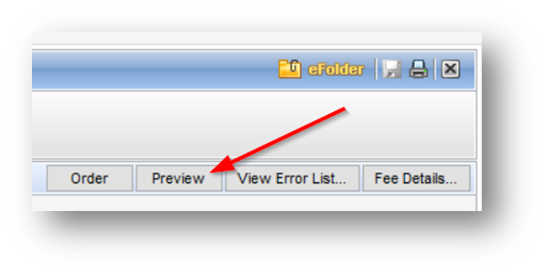
Know the difference between a Mavent “Order” and a “Preview”:
1\. Order – Looks at last disclosed values
a. Example: You’re checking to see if the last disclosed values are compliant
2\. Preview – Looks at current system values
a. Example: You’ve manipulated points & fees and are trying to see if you get a Pass
## For Processors
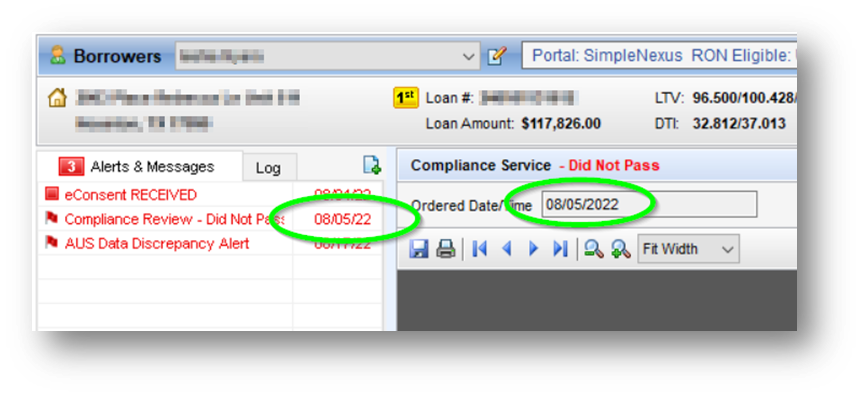
Make sure you’ve run Mavent recently. Check the date on the Alert or on the Compliance Review/Service screen. If it needs to be re-ran click the Preview button.
### 2015 Itemization screen
1. Not applicable for Subordinate/2nd Lien files
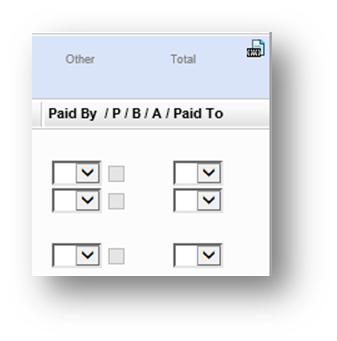
2. All fees need to have a “Paid to” designated on the 2015 Itemization screen. If the fees don’t list who receives the fees, Mavent doesn’t know how to determine what to include in the ATR/QM Points and Fees test.
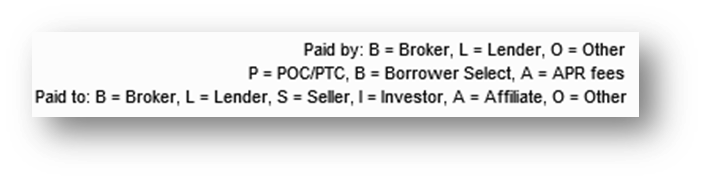
*Legend (located at the top right hand corner): : Any fee line with a dollar amount listed will need to have a “Paid To” designation listed.*
3. Check Line 802e to make sure the “Bona Fide” box is checked and the “Paid to” shows “L”
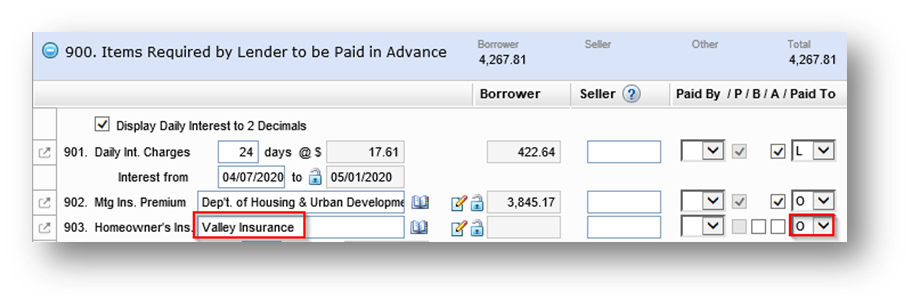
4. Check the Hazard Insurance and Escrow/Title fees to see if the “Paid to” is marked as paid to (L) Lender or (O) Other. If the borrower is NOT using Americana’s affiliate partner, make sure it is marked as paid to (O) Other.
*Example: This should show “O” if we’re not using an Americana affiliate*
### ATR/QM Management Screen
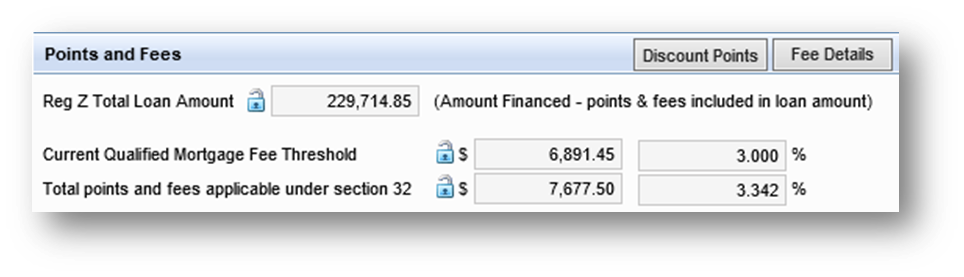
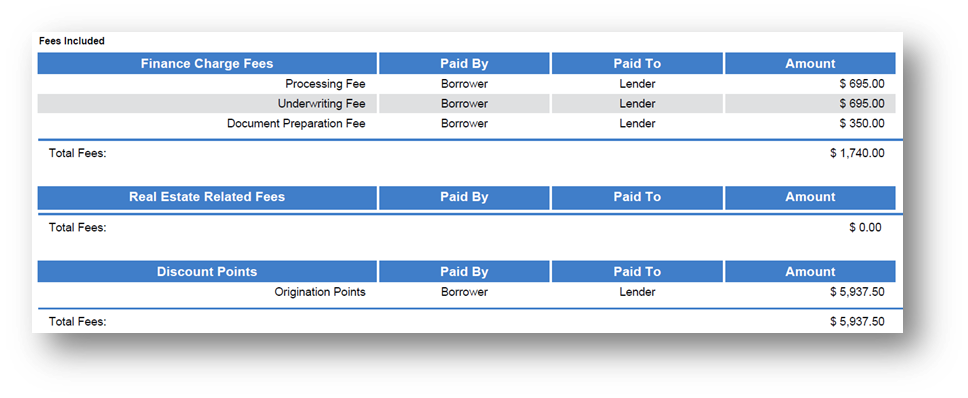
1. Click on the Qualification tab then scroll to the Points and Fees section. Verify if your “total points and fees” is over the “fee threshold.” If it is, open the Mavent Report and determine which fees need to be lowered to get under the threshold.
*Example: We’re over by $786.05 in part because we locked with too many discount points*
## For Underwriters
### ATR/QM Management Screen
*Note: This is not applicable for subordinate files.*
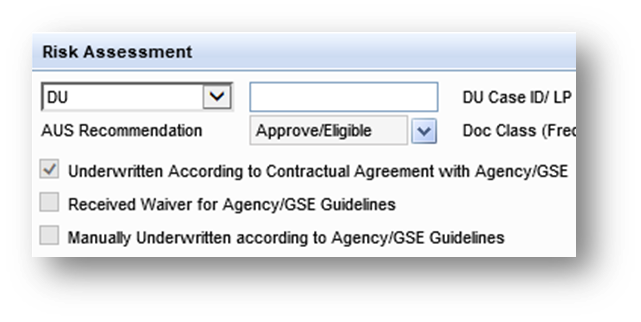
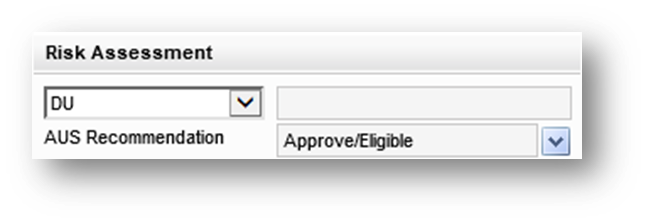
Click on the Qualification tab then scroll to the Risk Assessment section. Make sure:
1. The AUS type drop-down has a selection.
2. The AUS Recommendation drop-down has a selection.
3. That you’ve click the appropriate check box to indicate if the file is going by agency guidelines, received a waiver or was manually underwritten.
### Transmittal Summary
*Note: This is not applicable for subordinate files.*
Scroll down to the Risk Assessment section and make sure:
1. The AUS type drop-down has a selection.
2. The AUS Recommendation has a selection.
### ULDD/PDD
*Note: This is not applicable for subordinate files.*
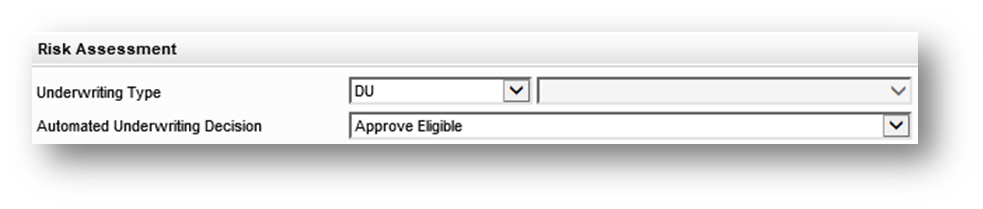
Scroll to the Risk Assessment and make sure an Underwriting Type and Automated Underwriting Decision have been selected.
### Underwriting Information
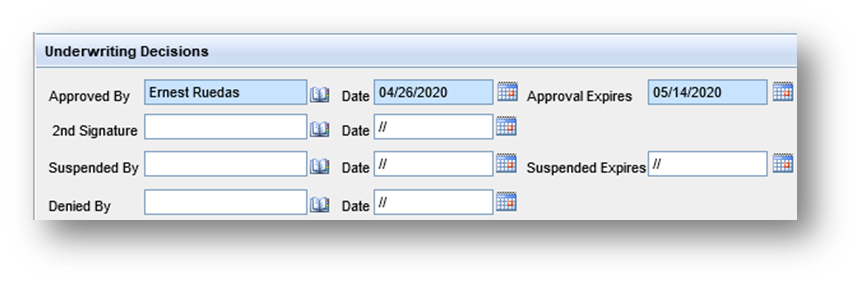
Your name, the date of conditional approval and conditional approval expiration need to be completed.
### Underwriting Summary Page 1
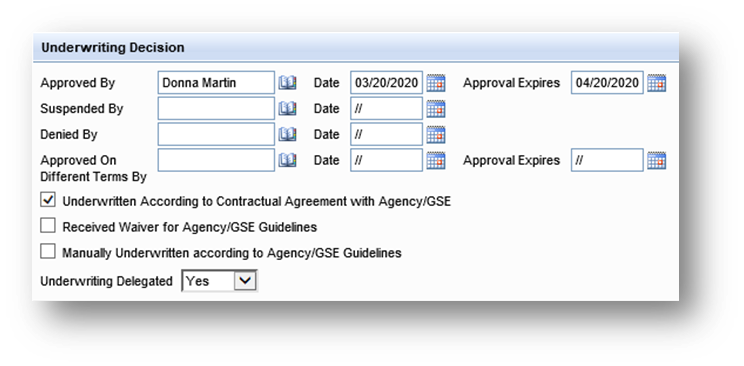
Scroll down to the Underwriting Decision section and complete:
1. Your name, date, and expiration (if applicable) for the appropriate decision.
2. The appropriate check box to indicate if it is underwritten per agency, received a waiver or was manually underwritten.
3. Indicate if underwriting was delegated.
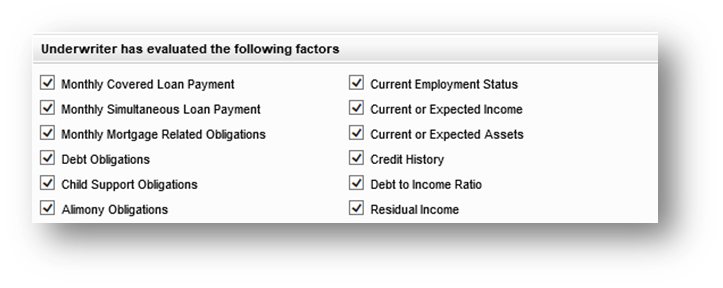
Scroll to the section labelled “Underwriter has evaluated the following factors.” Once you have determined each line item has been reviewed, place a check mark in each box.
### Underwriting Summary Page 2
Ensure the AUS/Underwriting Source and AUS Recommendation are completed.
## Agency GSE QM Eligibility Fail
1. We have some loans still coming in with a start date prior to 3/1/21, which is when the price-based QM started. This is causing an Agency GSE QM eligibility to fail, since the price-based rule was not yet in effect.
2. Resolution for QM fails for this specific case needs to have a ticket submitted so Encompass Desk can sync up the RESPA 6 Application date with the file started date in the background (on the milestones tab, the start date will not be changed).
1. The old file start date on these is typically due to loans sitting in prospects for months before moving forward.
2. As you and I discussed, Michelle, we will soon roll out a “copy tool” that will allow a new file start date that will prevent this issue from happening.
3. We are finalizing the Loan Copy tool this week.
## Erroneous DTI Mavent Compliance Fail
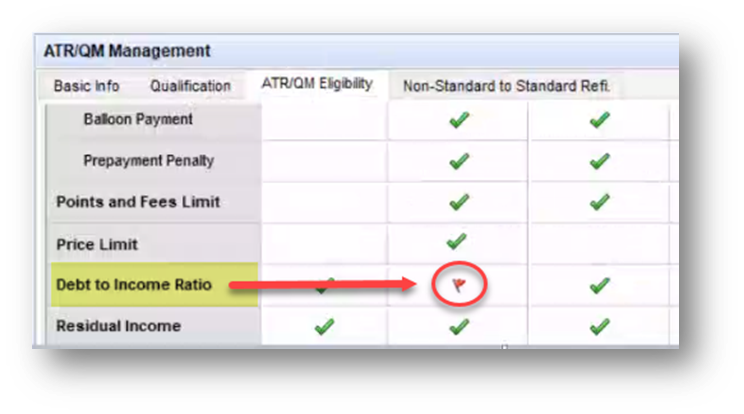
1. Even though the Price Based calculation is in effect, DTI Mavent fails have been occurring.
2. This is a known issue that ICE is working to resolve on their side.
3. These loans must go to to be reviewed by compliance to determine if the loan can move forward. These should NOT be Encompass tickets, as there is nothing we can do. The target date for fixing the bug is with the next major release, currently slated for October 9th, 2021 (target date, not set in stone).
## FHA Product-Specific Screens
### FHA Management Screen
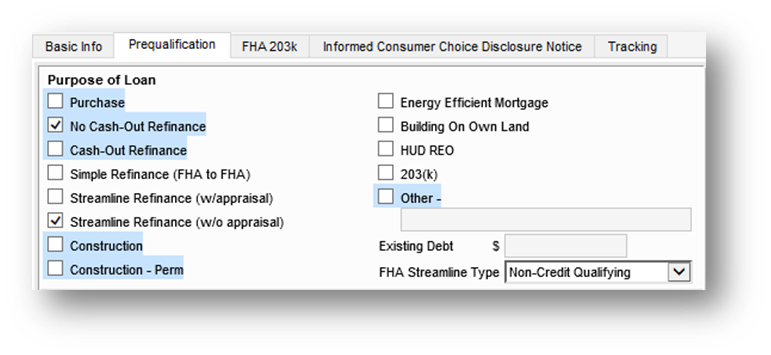
Click on the Prequalification tab. Mark the appropriate purpose.
1. For FHA Streamlines: both the “No Cash-Out Refinance” and “Streamline Refinance (w/o appraisal)” boxes should be checked.
2. Also, the FHA Streamline Type should be marked appropriately.
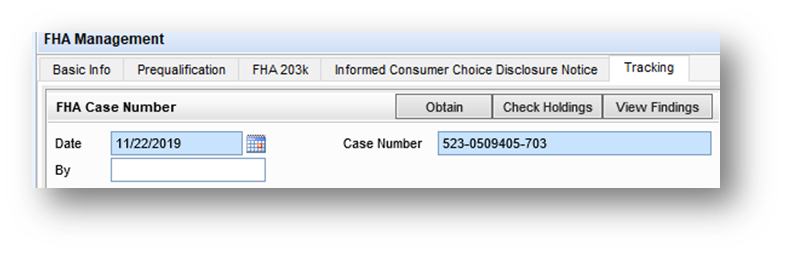
Click on the Tracking tab.
1. The FHA Case Number information must be completed. (Including case date).
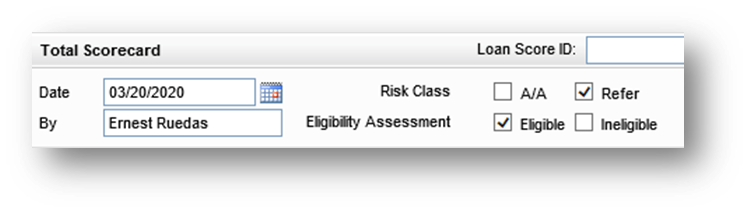
2. Find the Total Scorecard section. Make sure the appropriate Risk Class and Eligibility Assessment boxes are checked. (For FHA Streamlines: check Refer and Eligible).
### HUD-92900LT FHA Loan Transmittal
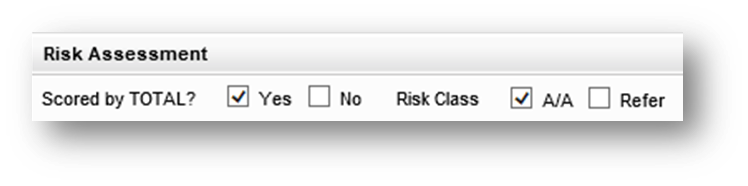
Scroll to the Risk Assessment section at the very bottom. Indicate if the file was scored by Total Scorecard and the Risk Class.
## VA Product-Specific Screens
### VA 26-0286 Loan Summary
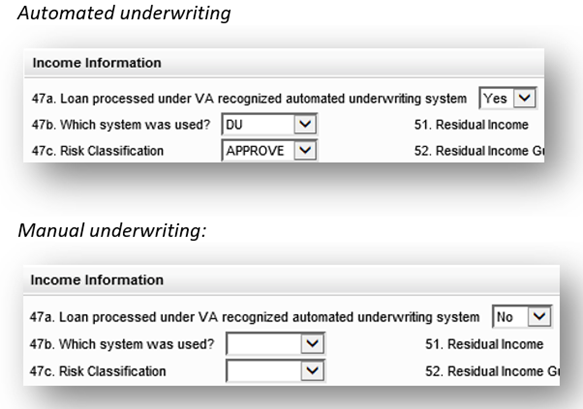
Scroll down to the Income Information section. Questions 47a-47c need to be completed.
## VA IRRRL Product-Specific Screens
### VA Management
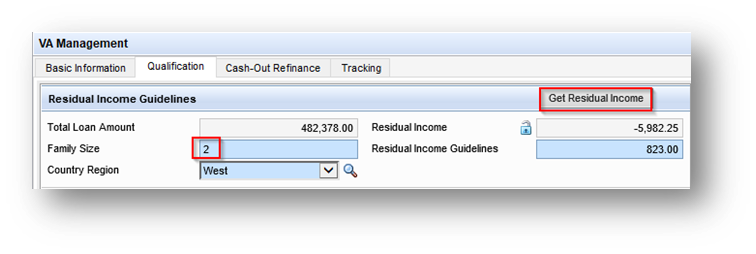
Click on the Qualification tab and scroll down to the—
1. Residual Income Family Size must be completed before clicking “Get Residual Income”.
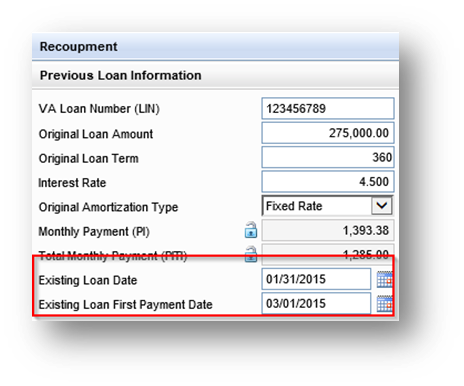
2. Recoupment section. Make sure the Existing Loan Date and Existing Loan First Payment Date are entered.
### ATR/QM Management
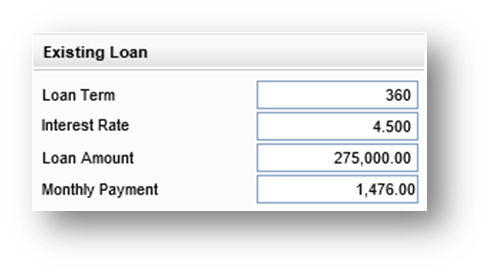
Click on the Non-Standard to Standard Refi. Tab and scroll to the Existing Loan section. Complete the loan term, interest rate, loan amount and monthly payment of the existing loan.
### 2015 Itemization
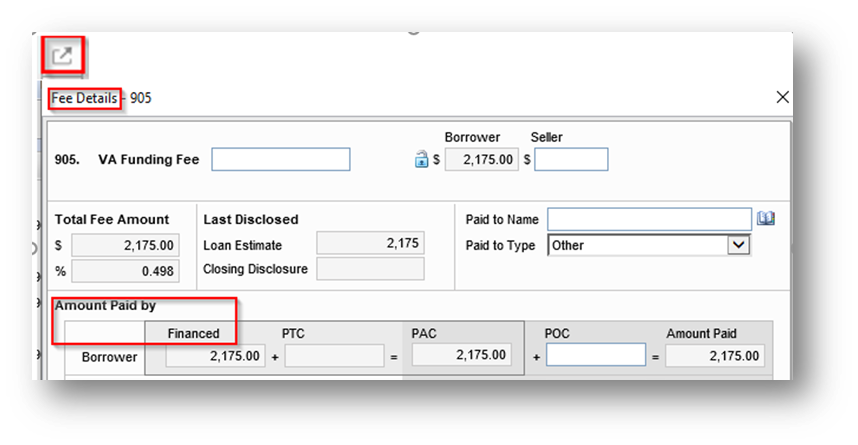
If the “VA IRRRL Prior Loan Balance > Threshold” is Failing on Mavent, make sure all fees being added to the loan balance are marked as Financed on the 2015 Itemization and any lender credits being used to pay fees are marked as Lender Paid from the Fee Details screen within the 2015 Itemization.
## Enterprise Rules
### Flood Zone Enterprise Rules
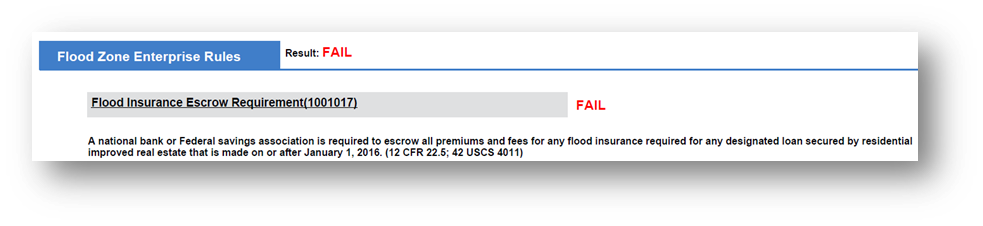
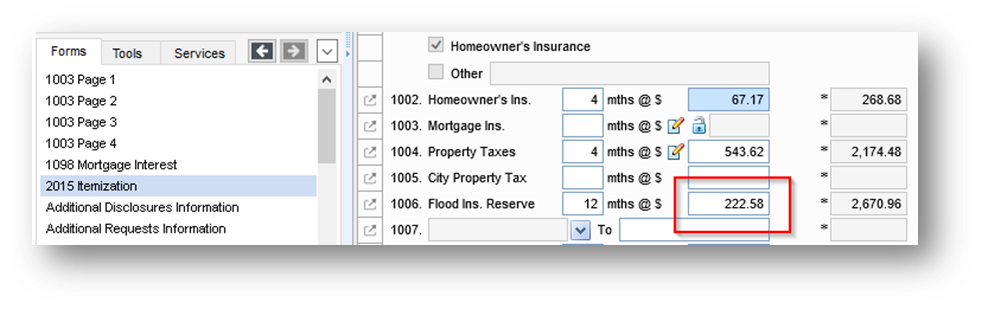
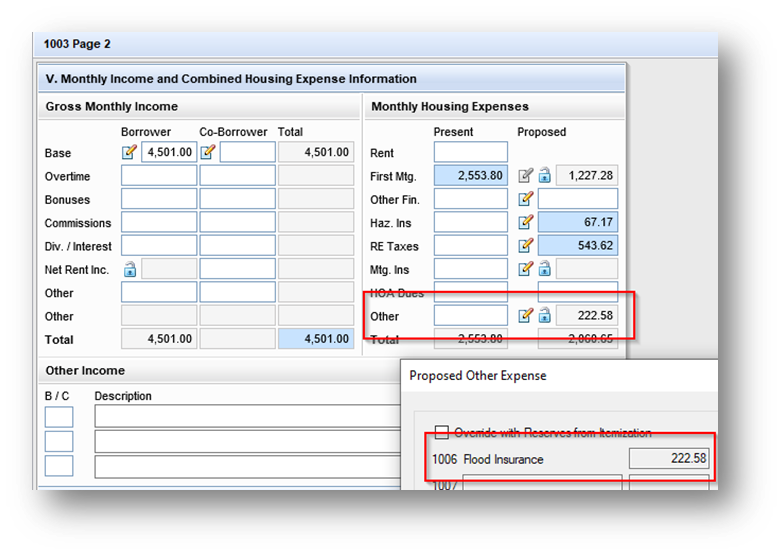
If Mavent is saying you do not have an escrow for flood insurance premiums set up, make sure you have the monthly premium entered in Field #235 on Line 1006 of the 2015 Itemization. This premium will then carry over to the “Other” box of the proposed monthly housing expense on page 2 of the 1003.
---
# Agent Instructions: Querying This Documentation
If you need additional information that is not directly available in this page, you can query the documentation dynamically by asking a question.
Perform an HTTP GET request on the current page URL with the `ask` query parameter:
```
GET https://pmg-2.gitbook.io/gdlc-l-and-d-hub/job-aids/closing-disclosures-job-aids/atr-qm-and-mavent-fail-resolutions.md?ask=
```
The question should be specific, self-contained, and written in natural language.
The response will contain a direct answer to the question and relevant excerpts and sources from the documentation.
Use this mechanism when the answer is not explicitly present in the current page, you need clarification or additional context, or you want to retrieve related documentation sections.